
In the rapidly evolving world of 2026 home entertainment, where 8K resolution and AI-enhanced upscaling are the norms, nothing ruins a cinematic experience faster than a distorted image. Whether you are watching a classic film on Netflix that looks awkwardly stretched or a modern blockbuster that appears zoomed in, aspect ratio issues remain a common frustration for smart TV users.
Understanding how to synchronize your streaming app’s output with your TV’s hardware is essential for achieving the perfect “Director’s Cut” look. In this comprehensive guide, we will walk you through the professional steps to resolve stretched, cropped, or zoomed video across all major smart TV brands and streaming platforms.
Why is My Smart TV Screen Stretched or Cropped?
Before diving into the fixes, it is important to understand the “why.” Aspect ratio is the proportional relationship between a display’s width and height. While the industry standard for modern displays is 16:9, content varies from the “Academy Ratio” (4:3) of older shows to the “Ultrawide” (21:9) format of cinema.
Issues typically arise because of a communication breakdown between the streaming app, the external device (like a Roku or Apple TV), and the TV’s internal processor. In 2026, many TVs use AI to “fill the screen,” which can occasionally lead to unwanted cropping or distortion.
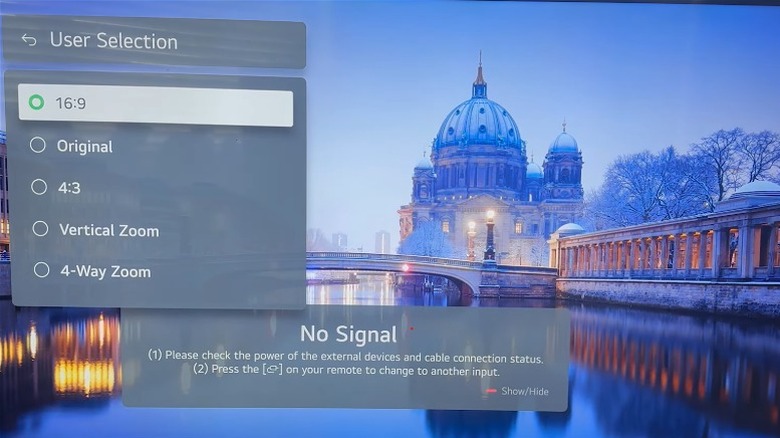
Step 1: Adjusting Global TV Picture Settings
The first place to look is your TV’s primary settings menu. Most modern TVs have a “Global” setting that attempts to force all input into a specific shape.
- Locate the Aspect Ratio Menu: On your remote, press the “Home” or “Settings” button. Navigate to Picture > Screen Size or Aspect Ratio.
- Select “Fit to Screen” or “Just Scan”: This is the most critical setting for 2026 displays. Unlike “16:9,” which might slightly overscan the image, “Fit to Screen” ensures that 100% of the source signal is mapped pixel-for-pixel to your display.
- Avoid “Zoom” or “Wide Zoom”: These settings are designed to remove black bars but often result in a loss of image quality and cropped subtitles.
Step 2: Fixing App-Specific Aspect Ratio Issues
In 2026, many streaming apps like Netflix, Disney+, and YouTube have gained more control over the hardware. Sometimes, changing the TV settings won’t work because the app is overriding them.
Troubleshooting Netflix and YouTube
If Netflix or YouTube appears zoomed in, the app’s cache might be forcing a specific display metadata.
Restart the App: Fully close the app (don’t just go to the home screen) and relaunch it.
Check App Settings: Some apps have an internal “Playback” menu where you can toggle between “Original” and “Fit”.
Solutions for IPTV and Third-Party Players
IPTV services are notorious for aspect ratio mismatches. If you are using an IPTV player:
Cycle Ratio Options: Most IPTV apps allow you to cycle through ratios (4:3, 16:9, Zoom) by pressing a specific button on your remote (usually the green or “info” button).
Set to “Auto”: If available, the Auto aspect ratio option is usually the best bet for IPTV, as it adjusts dynamically based on the channel’s broadcast source.
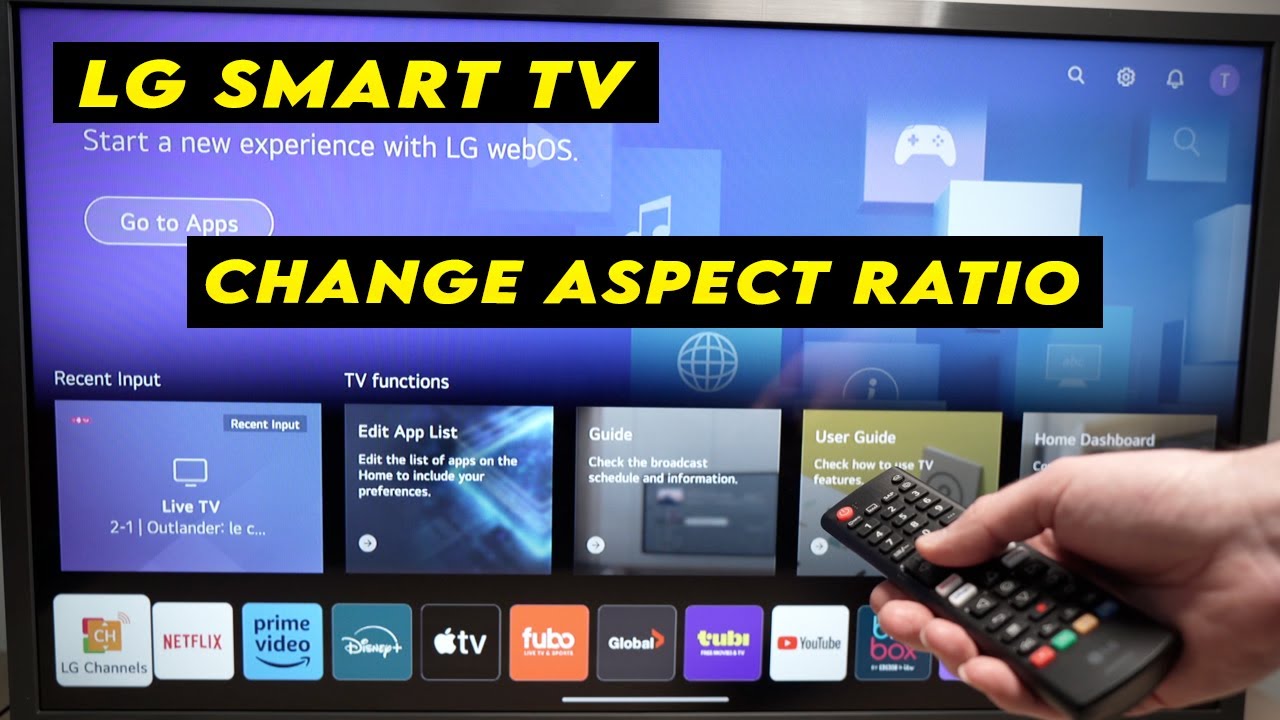
Step 3: Solving the “Greyed Out” Aspect Ratio Mystery
A common complaint among LG and Samsung users is finding the Aspect Ratio option greyed out in the settings menu. This isn’t a glitch; it’s usually a hardware limitation or a software “safety” feature.
Why is it Greyed Out?
4K/8K High-Resolution Signals: When your TV receives a high-quality 4K or 8K signal, it often locks the aspect ratio to 16:9 to ensure you are getting the intended resolution.
Intelligent Mode: Many 2026 Samsung TVs feature “Intelligent Mode” or “AI Picture Optimization.” These features take full control of the screen dimensions. To regain manual control, you must disable these AI features in the General Settings.
HDR/Dolby Vision: When HDR content is playing, certain picture adjustments are disabled to maintain the color and luminance integrity of the format.
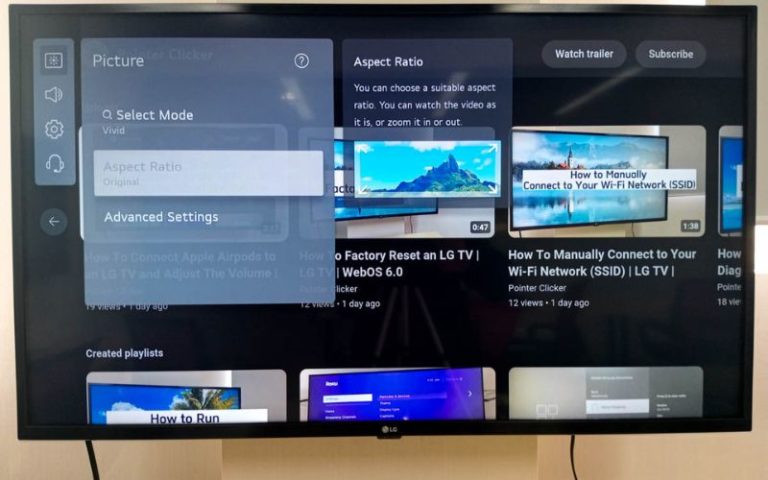
Step 4: Checking External Streaming Devices
If you are using an external device like a Firestick, Roku, or Apple TV 4K (2026 edition), the issue might not be your TV at all. These devices have their own display output settings that can conflict with your TV.
- Navigate to Device Settings: Go to Settings > Display & Sounds > Resolution.
- Match Frame Rate: Enable “Match Content Frame Rate” and “Match Content Range.” This allows the device to switch output modes based on what you are actually watching.
- Calibrate Overscan: Both Fire TV and Roku offer a “Calibrate” tool. This allows you to manually adjust the borders of the image to ensure they perfectly hit the edges of your TV screen.
Advanced Fixes for 2026 Smart TVs
As we move further into the decade, software updates are more frequent. If the standard fixes don’t work, consider these advanced steps:
Firmware Updates: Manufacturers often release patches for “app-handshake” issues. Ensure your TV OS is up to date.
Reset Picture Settings: If you’ve tinkered with too many settings, go to Settings > Picture > Expert Settings > Reset Picture. This returns the display to factory defaults, which often clears up weird scaling bugs.
Disable “Auto Wide”: Some Sony and Vizio TVs have an “Auto Wide” feature that tries to guess the correct ratio. In 2026, this feature can sometimes be fooled by letterboxed content, causing the TV to zoom in unnecessarily. Turn this OFF for a more consistent experience.
Summary Checklist for a Perfect Picture
To ensure you never have to deal with a stretched face or cut-off subtitles again, follow this quick checklist:
Always use “Fit to Screen” or “Just Scan” in your TV’s main settings.
Disable AI Intelligent Modes if you want manual control over the ratio.
Check the app settings first when using IPTV or specialized streaming players.
Ensure your external device (Roku/Firestick) resolution is set to “Auto” or the native resolution of your TV.
Conclusion
Fixing aspect ratio issues on smart TV streaming apps in 2026 is largely about managing the balance between AI automation and manual overrides. While TVs are getting smarter, they still occasionally need a human touch to ensure that “The Godfather” doesn’t look like it was filmed on a smartphone. By following the steps outlined above—starting with global settings and moving into app-specific configurations—you can ensure a perfect, cinematic viewing experience every time.