
In an era where our devices are engineered to steal our attention, reclaiming your cognitive space isn't just a luxury—it’s a survival skill. We are constantly bombarded by pinging notifications, flashing badges, and the siren song of social media updates. If you have ever sat down to finish a report only to look up two hours later wondering where the time went, you aren't alone. You are a victim of fragmented attention, a state where your brain never truly settles into the "deep work" zone.
Focus Mode has evolved from a simple "Do Not Disturb" toggle into a sophisticated, multi-platform productivity ecosystem. Whether you are using a Windows 11 machine to crush a project or an iPhone to manage your personal life, mastering these tools is the most effective way to boost your output. In this guide, we’ll explore how to leverage these features in 2026 to turn your digital devices from sources of distraction into engines of efficiency.
The Science of Interruption: Why You Need Focus Mode
The human brain is not wired for constant task-switching. Research suggests that after being interrupted, it takes an average of 20 minutes to regain your original level of focus. If you check your phone or respond to a stray email notification every 15 minutes, you are essentially living in a state of permanent cognitive deficit.
When you activate Focus Mode, you are doing more than just silencing your phone; you are signaling to your brain that it is time for deep work. By removing the environmental cues that trigger distraction—like the red dot on an app icon or the chime of a new message—you lower the "activation energy" required to start and maintain high-quality work.
Windows 11: Transforming Your PC into a Focus Machine
Microsoft has made significant strides in 2026 to ensure that Windows 11 is the most productive operating system for professionals. The built-in Focus sessions feature is a powerhouse that integrates directly with the Clock app.
How to Trigger Focus Instantly
The beauty of modern Windows is the speed at which you can enter a flow state. Forget digging through menus; the quickest way to silence the noise is the Quick Settings panel.
- Press Windows Key + A to open your Quick Settings.
- Locate the Focus button.
- Click it once, and your desktop enters a "Do Not Disturb" state.
By default, this silences all notifications, hides taskbar badges, and prevents alert pop-ups. You can customize this further by right-clicking the icon or navigating to Settings > System > Focus.
Integrating Tasks and Music
What sets the 2026 iteration of Windows Focus apart is the synergy with other apps. You can link your Microsoft To Do list directly to your focus session. When you start a timer, your current task is front and center on the screen. Furthermore, deep integration with Spotify means you can trigger a curated "Focus" playlist the moment your session begins. This creates a Pavlovian response: when the music starts and the notifications stop, your brain knows it’s time to perform.
Apple’s Ecosystem: Customizing Focus for Every Aspect of Life
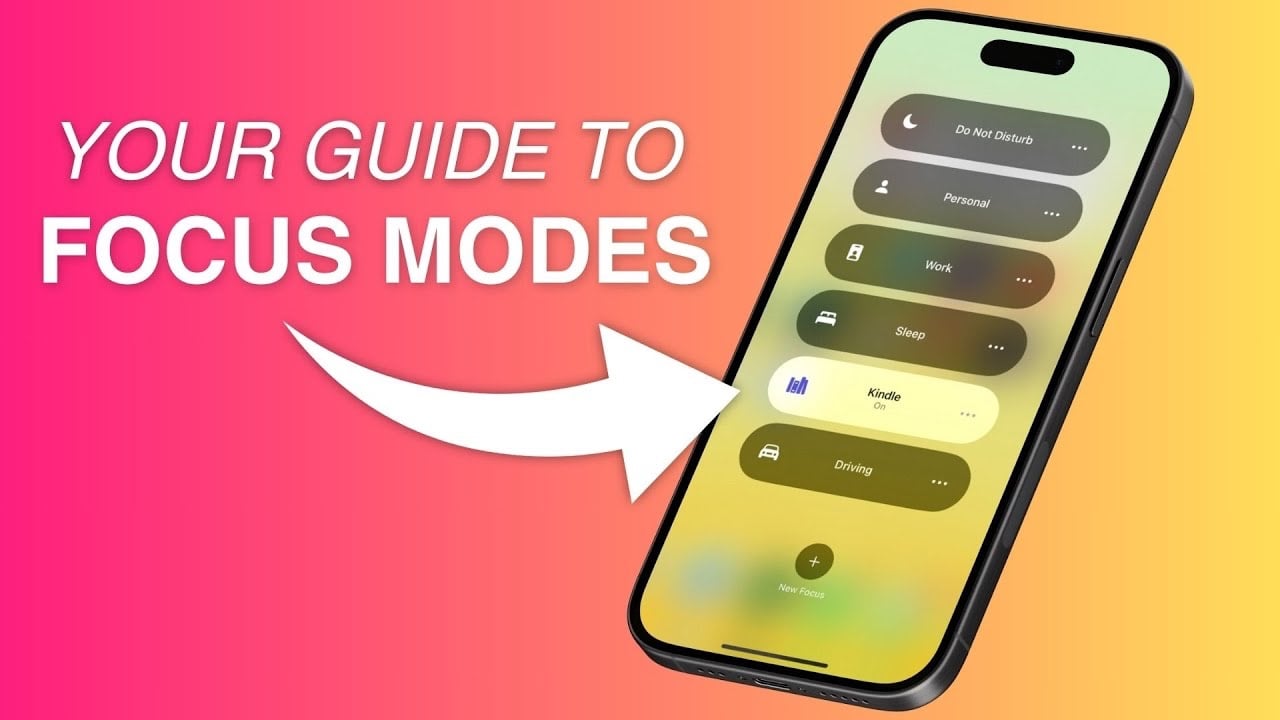
Apple pioneered the modern concept of granular Focus Modes. In 2026, these are no longer just "on/off" switches; they are intelligent filters that adapt to your location, time of day, and even your activity.
Setting Up Custom Focus Profiles
Instead of a single "Do Not Disturb," you should create dedicated profiles for different personas:
- Deep Work: Allow only calls from your boss or family, and silence all social media notifications.
- Personal/Creative: Mute work emails and Slack, but allow notifications from your hobby apps or fitness trackers.
- Sleep: A total blackout of non-emergency alerts, coupled with a dimming of the screen.
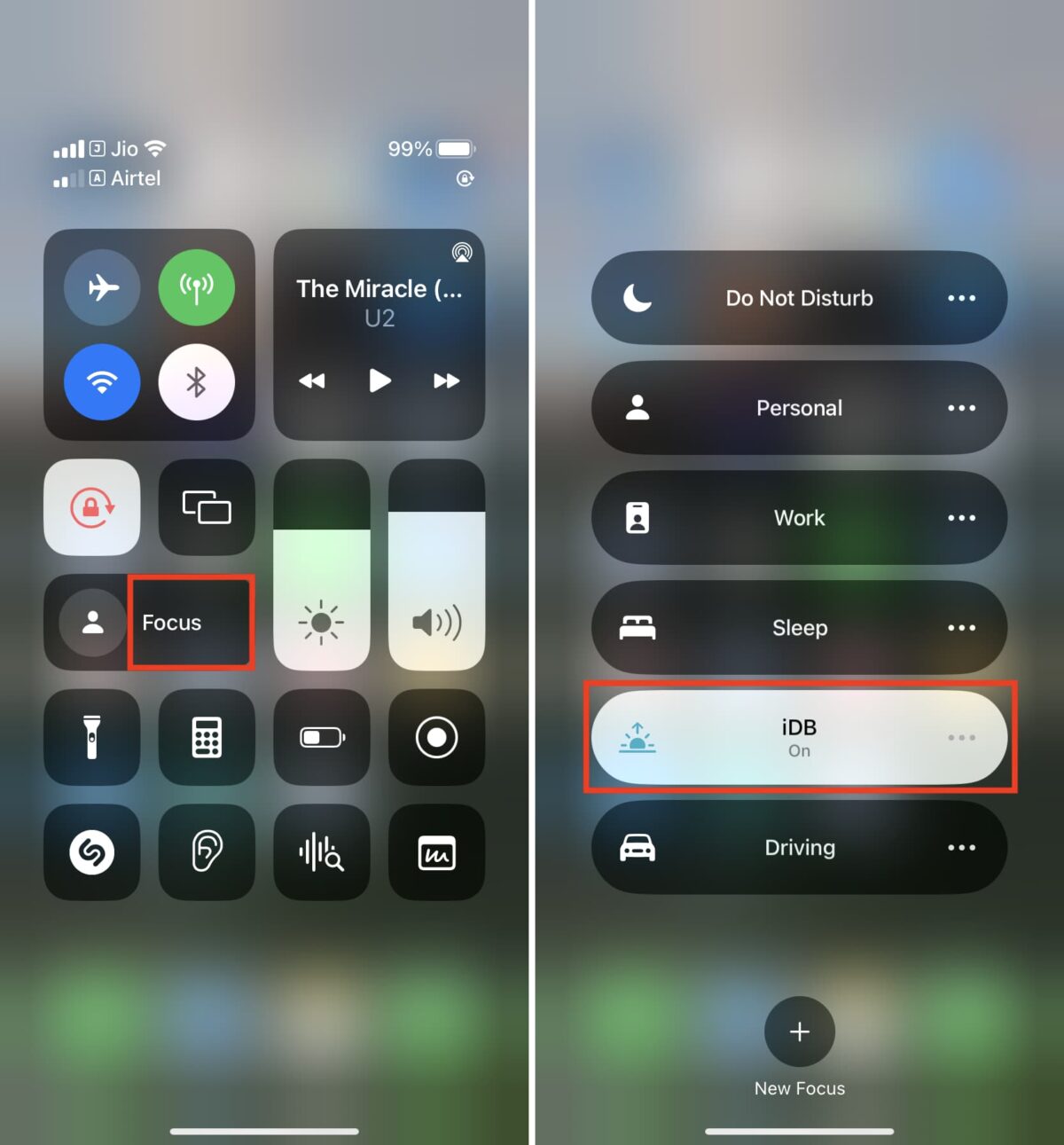
To set these up, go to Settings > Focus. You can specify which people and apps are allowed to "break through" the silence. This ensures that you don't miss urgent updates while successfully filtering out the digital clutter.
Advanced Strategies: Beyond the Basics
If you want to operate at a professional level, you need to treat your attention like a finite budget. Here are three advanced strategies for 2026:
1. The "Intervention" Technique
Some third-party tools, such as the focusmode browser extension, take a different approach. Instead of just blocking sites, they introduce a "friction" layer. When you try to access a distracting site like Reddit or YouTube, a prompt appears asking if you are sure you want to proceed. This brief moment of mindfulness is often enough to break the impulsive habit loop.
2. Schedule Your Sanity
Automation is the secret weapon of the hyper-productive. Don't rely on your willpower to turn on Focus Mode; schedule it. Set your computer and phone to enter "Work Focus" automatically from 9:00 AM to 12:00 PM every weekday. When your environment changes predictably, your brain prepares for the transition naturally.
3. Use Focus Filters
On Apple devices, Focus Filters allow you to filter content within apps. For example, when you are in your "Work" Focus, you can configure your Calendar app to only show work-related calendars, or hide personal threads in your Mail app. This reduces the cognitive load of seeing irrelevant information during your designated work blocks.
The ROI of Focused Time
Why go through all this effort? Let's look at the numbers. Data consistently shows that professionals who implement strict "deep work" intervals report a 30% to 50% increase in output compared to those who work in an "always-on" reactive state.
Furthermore, the quality of work produced during a focused session is objectively higher. When you are not context-switching, your brain can handle complex problem-solving, creative synthesis, and high-level strategy more effectively. You aren't just working faster; you are working better.
Frequently Asked Questions
Is Focus Mode the same as Do Not Disturb?
In many systems, they are technically the same, but "Focus Mode" usually implies a more advanced set of features. While Do Not Disturb is a simple on/off switch, Focus Mode allows for scheduling, app-specific filtering, and integration with productivity tools like timers and task lists.
Can I allow important calls while in Focus Mode?
Yes. Both Windows and iOS allow you to designate "People" or "Contacts" who can bypass your Focus settings. By configuring an "Allowed List," you ensure that you stay reachable to your emergency contacts while blocking everyone else.
Does turning on Focus Mode delete my notifications?
No, it does not delete them. Your notifications are simply silenced and held in your Notification Center. Once your focus session ends, you can review them at your own pace, ensuring you remain in control of your communication rather than the other way around.
Will Focus Mode stop me from receiving urgent emails?
It depends on your settings. You can choose to allow notifications from specific apps. If you need to see emails from a specific client or manager, you can whitelist the Mail app in your Focus settings so that only those specific alerts reach you.
Conclusion
The digital world of 2026 offers more tools for distraction than ever before. However, the exact same technology provides us with the most powerful defense systems we have ever had. By mastering Focus Mode, you are reclaiming your most valuable asset: your attention.
Start small. Set a 25-minute timer for your next task, turn on your Focus settings, and notice the difference in how you feel when the timer goes off. You will likely find that you’ve accomplished more in those 25 minutes than you did in the hour before. In a world that demands your constant attention, the most radical act of productivity is choosing to ignore the noise.
References
- Microsoft Support — Focus: Stay on Task Without Distractions in Windows, 2026
- Apple Support — Set up a Focus on iPhone, 2026
- All Tech Nerd — How to Enable and Use Focus Mode on Windows 11, 2025
- Worldbytes — A practical guide to activating and deactivating Focus Mode in Windows 11, 2025
- MK Usmaan — How to Turn On Focus Mode in Windows: A Complete Working Guide, 2026
- Thinglabs — How to Set Up and Delete Focus in iOS, 2026