
We have all been there: you walk into your living room, command your voice assistant to turn on the lights, and are met with the dreaded, “Sorry, that device is not responding.” By 2026, our homes are more connected than ever, but that increased density often leads to complex network bottlenecks. When your smart ecosystem goes dark, it isn’t just an inconvenience—it’s a disruption to your automated lifestyle.
Whether you are dealing with a single flickering bulb or a total blackout of your Lutron Caseta or Philips Hue bridge, this guide will help you diagnose and resolve the most common smart home connectivity issues.
1. The “Power Cycle” Rule: Start with the Basics
Before diving into complex network configurations, always start with the most reliable fix in the tech world: the power cycle. Smart devices, especially those that have been running for months without a reboot, can experience memory leaks or background process crashes.
Unplug your smart device, wait at least 30 seconds, and plug it back in. If you are using a smart bridge (like a Lutron Caseta bridge or a SmartThings hub), reboot the bridge itself. Often, the bridge loses its handshake with the router, and a simple power cycle refreshes the local IP address assignment.
2. Audit Your Wi-Fi Congestion
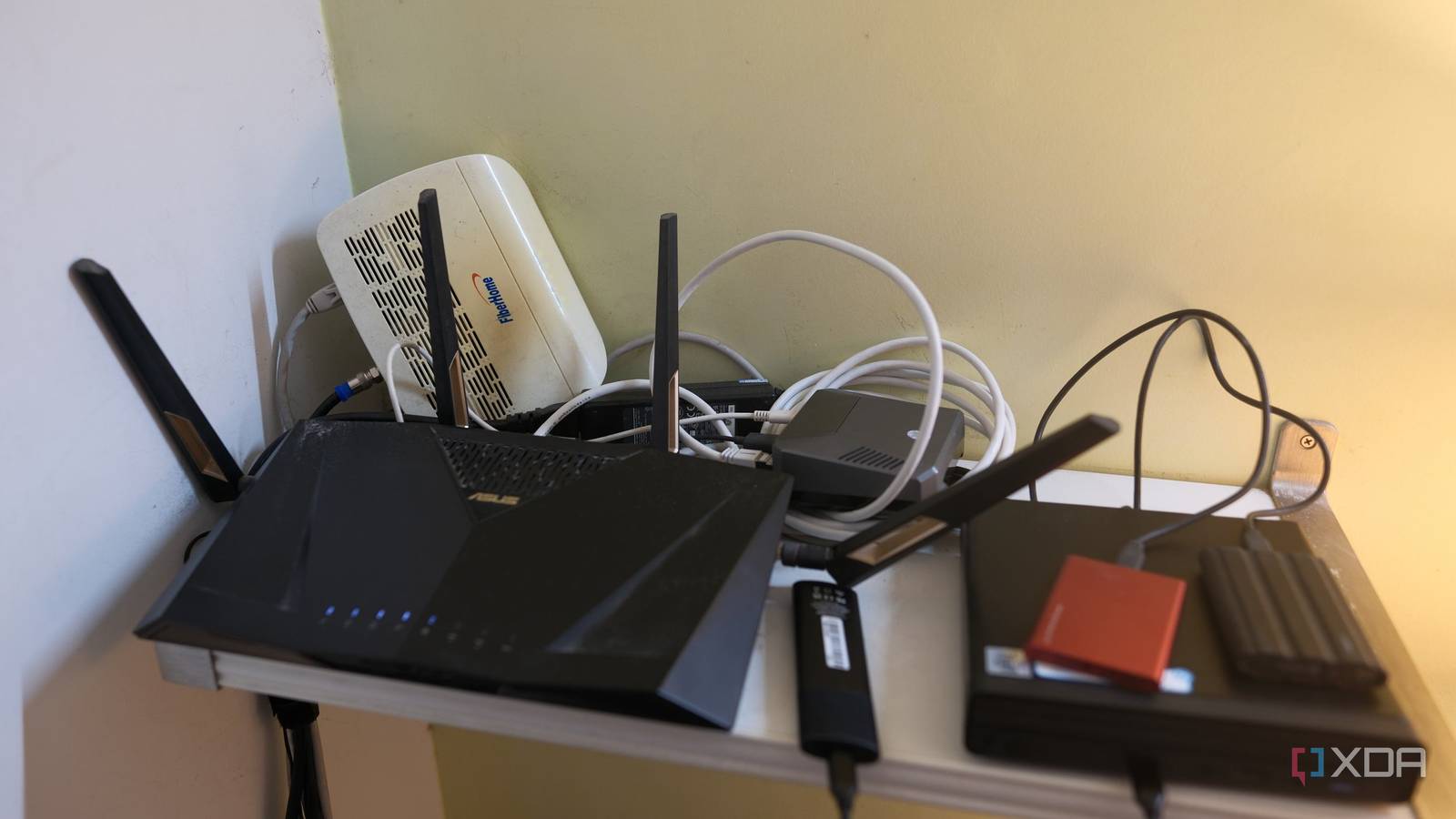
In 2026, the average household has over 30 connected devices. If your router is still using a standard 2.4GHz band for everything, you are likely suffering from channel interference.
Smart devices predominantly use the 2.4GHz frequency because it travels through walls better. However, this frequency is crowded by microwaves, Bluetooth devices, and your neighbor’s Wi-Fi.
Check your router’s app: Look for “Network Health” or “Channel Interference” metrics.
Switch channels: If possible, set your 2.4GHz channel to 1, 6, or 11 to avoid overlapping signals.
Upgrade your hardware: If your router is more than three years old, it may lack the processing power to handle the high device density of a modern smart home.
3. Addressing “No Response” in Apple Home and Other Ecosystems
If you are specifically seeing “No Response” in the Apple Home app for devices like Lutron Caseta or smart locks, the issue is often a mismatch between the local network and the cloud bridge.
Ensure your home hub (HomePod, Apple TV, or iPad) is on the exact same subnet as your smart devices. If your router has a “Guest Network” enabled, ensure your smart devices have not accidentally migrated to that isolated network. Guest networks are designed to prevent devices from talking to each other, which effectively kills smart home control.
4. When to Perform a Factory Reset
If you have tried rebooting your router, power-cycling the device, and ensuring your firmware is updated, it may be time for a factory reset.
Warning: This should be your last resort, as you will have to re-add the device to your scenes, rooms, and automations.
- The Process: Most devices have a physical button that must be held for 10–15 seconds. Refer to your specific manufacturer’s manual for the LED flash pattern that indicates a successful reset.
5. Proactive Network Maintenance for 2026
To prevent these issues from recurring, adopt a proactive stance on network management:
- Reserve IP Addresses: Use your router’s DHCP Reservation settings to assign a static IP address to your smart hubs. This prevents the “IP conflict” issue that occurs when a device re-joins the network.
- Firmware Updates: Set your router to check for firmware updates automatically. Modern routers include security patches that specifically improve how they handle high-volume IoT traffic.
- Speed Tests: Regularly run a speed test to ensure your ISP isn’t throttling your connection. If your baseline internet speed is unstable, your cloud-based smart devices will struggle to maintain a persistent connection.
Conclusion: Take Control of Your Connectivity
A “Smart Device Not Responding” error is rarely a sign that your device is broken; it is usually a sign of a congested or misconfigured network. By auditing your Wi-Fi environment, ensuring your devices are on the correct subnets, and keeping your router firmware updated, you can minimize downtime and ensure your smart home stays responsive.
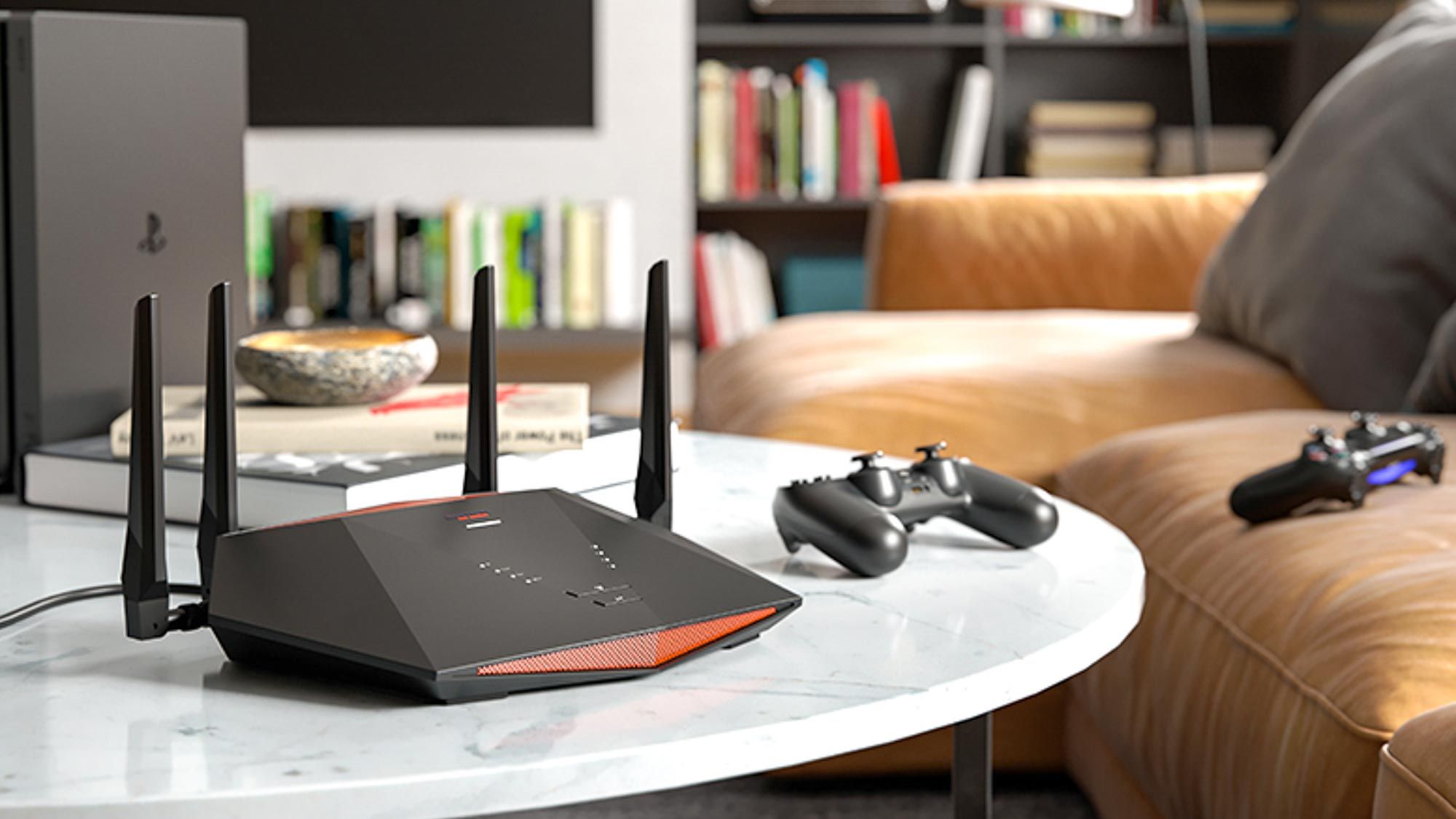
If you continue to experience widespread failures after these steps, consider upgrading to a Mesh Wi-Fi system. Mesh systems provide better coverage and more efficient load-balancing, which is essential for the modern, device-heavy home of 2026.